
Choosing and setting up your device
Your first look at mesh hardware can feel like being dropped into a jungle of options. With this guide, we hope you can choose a useful device that suits you on the first attempt.
It helps to know that all the options fall into two camps based on their System-on-Chip (SoC):
| System-on-Chip | Characteristics | Manufacturer |
|---|---|---|
| ESP32 | Versatile, power-hungry, includes WiFi. | Espressif Systems, China |
| nRF52 | Simple, power-efficient, no WiFi. | Nordic Semiconductor, Norway |
Another thing to remember is that no device is a ready-to-use MeshCore companion radio straight out of the shop. You may find a product with MeshCore companion firmware already installed, but rapid development means that version is invariably old. Flashing, covered below, is a basic MeshCore skill worth learning right away.
A third complication is that there is no single established term for these devices. Online shops may call them:
- Mesh node
- Mesh radio
- LoRa development board
- Meshtastic device
- Wireless tracker / tag
- Communication device
MeshCore Finland does not recommend particular shops. Devices are not currently sold in Finland, so you will need to buy from an overseas online retailer.
Ready-made or DIY?
Section titled “Ready-made or DIY?”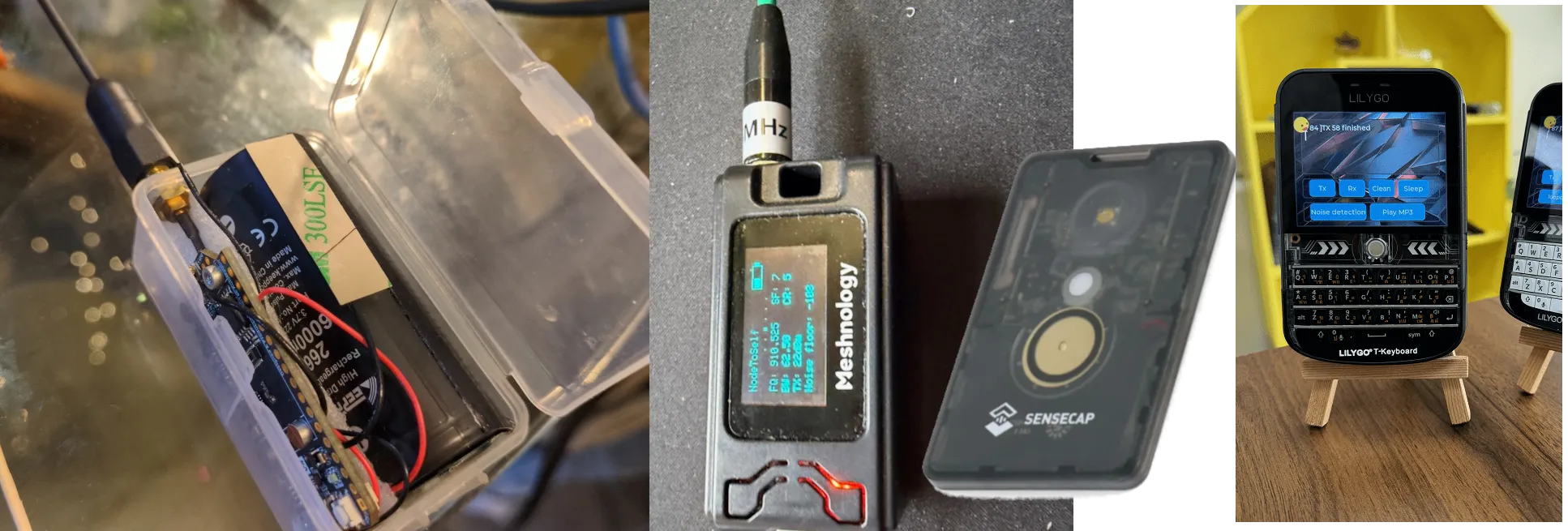
Building your own lets you create a personal and very inexpensive companion radio. At its simplest, you need a €10–30 development board, a durable enclosure and a USB power bank. Practically all products of this kind can also be connected to a lithium battery without extra purchases: a cable and connector are included, and the devices have built-in charging circuitry.
Ready-made options range from credit-card-sized trackers to devices with a keyboard and screen. These are somewhat more expensive, typically €100–200. The community has made excellent MeshCore applications, particularly for keyboard devices, but you will need to look beyond the official Flasher website to find them.
Installing the firmware
Section titled “Installing the firmware”Officially supported companion devices are listed in MeshCore Flasher. If your device is listed, it is officially supported and a dependable choice as a companion radio. Installation runs directly on that website and is largely automatic. You need a computer browser: browser-based installation is not available on mobile devices. Here, flashing means installing the firmware.
Connect the device to your computer with a cable and select its name from the list. In the next list, choose Companion Bluetooth or Companion USB, depending on whether you want to connect wirelessly over Bluetooth or through a USB cable.
The next page is the final step before installation. You can choose a firmware version; the latest is selected automatically. For nRF52 devices, the following actions are available. These devices must enter DFU mode before flashing, so first select ‘Enter DFU mode’.
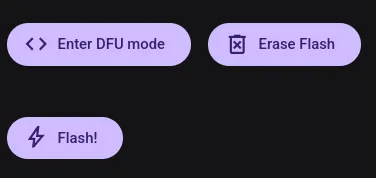
The view is simpler for ESP32 devices. Yours may still require a button combination to enter flashing mode before installation can begin. It is worth trying without that first.
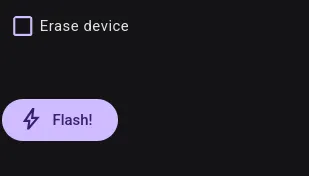
In both cases, start the first installation with a clean slate by using Erase flash / Erase device. When updating to a newer version later, do not use this action, as it would erase your settings.
Finally, press Flash!. The browser opens a dialog where you select your device. Press the connection button (‘Muodosta yhteys’ in the Finnish dialog shown below) to begin. Do not interrupt installation once it has started! It takes only about ten seconds.
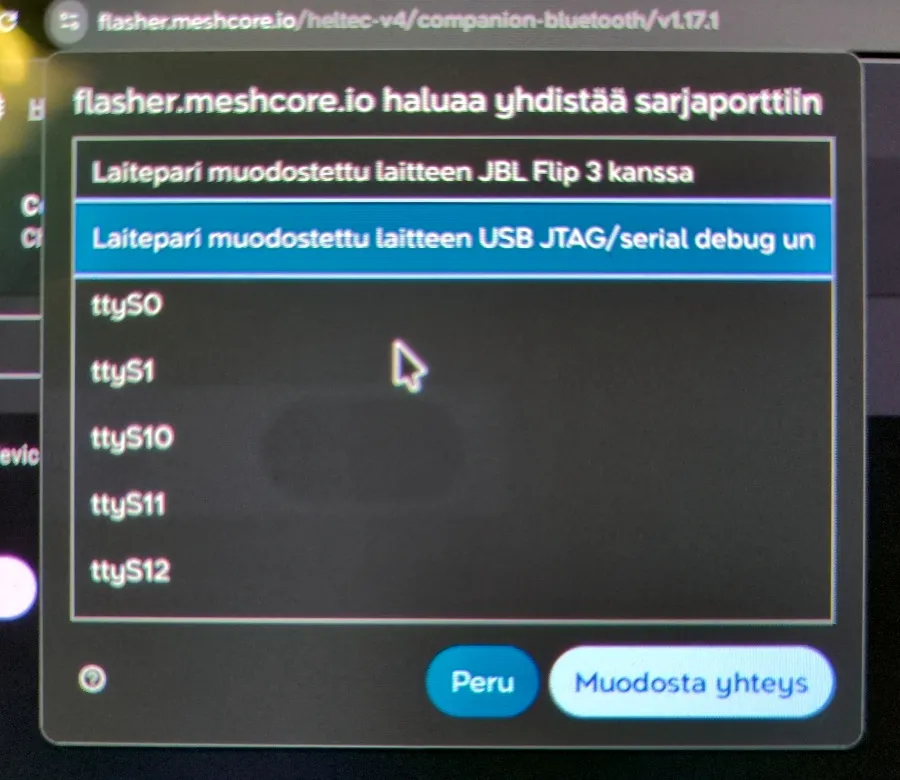
If installation succeeded, congratulations: your companion radio is ready for service! If it failed, try again. With an ESP32 device, a likely reason is that it needs to be put into flashing mode. The device’s instructions or the MeshCore Finland discussion group should help.
Next, configure the settings
Section titled “Next, configure the settings”Setup continues with configuration. There are many devices and apps; these pages walk you through the settings using the official MeshCore app. If you use another device or app, you will need to adapt the instructions.